

Work inside one folder
The folder passed todocwriter is the workspace root. Choose a folder that contains the files for the writing project. The file tree and preview tools stay inside this folder.
Create and organize files
Use the file tree controls to create a file or folder. A file starts empty. Use the context menu to rename or delete an item, and drag files or folders to move them.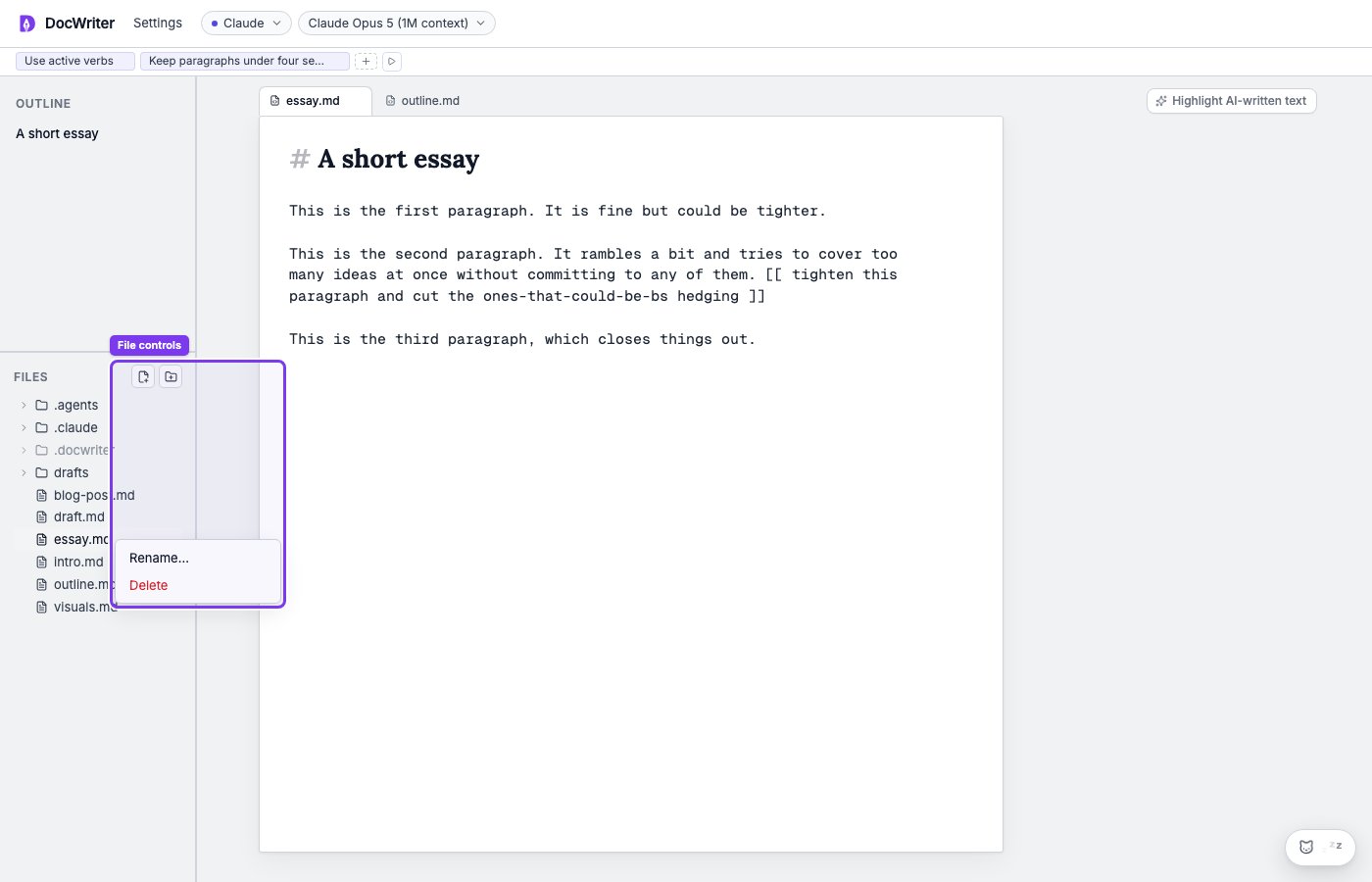
The file controls are beside Files. Right-click an item to rename or delete it.
Use tabs
Click a file to open it as a tab. Your tab order and active tab remain after you restart DocWriter. Closing a tab keeps the file on disk. Use the tab context menu to rename the file, copy the workspace path, or delete the file. Double click a tab to rename it. Press Enter to save the name or Escape to cancel. A badge on a tab means the file has pending agent work or an unresolved agent comment. Use the badges to find files that still need your attention. Stale edit proposals do not count toward the badge. Markdown, plain text, LaTeX, JSON, YAML, and source files open as plain source tabs. Markdown receives visual layers. LaTeX related extensions remain plain source without Markdown rendering.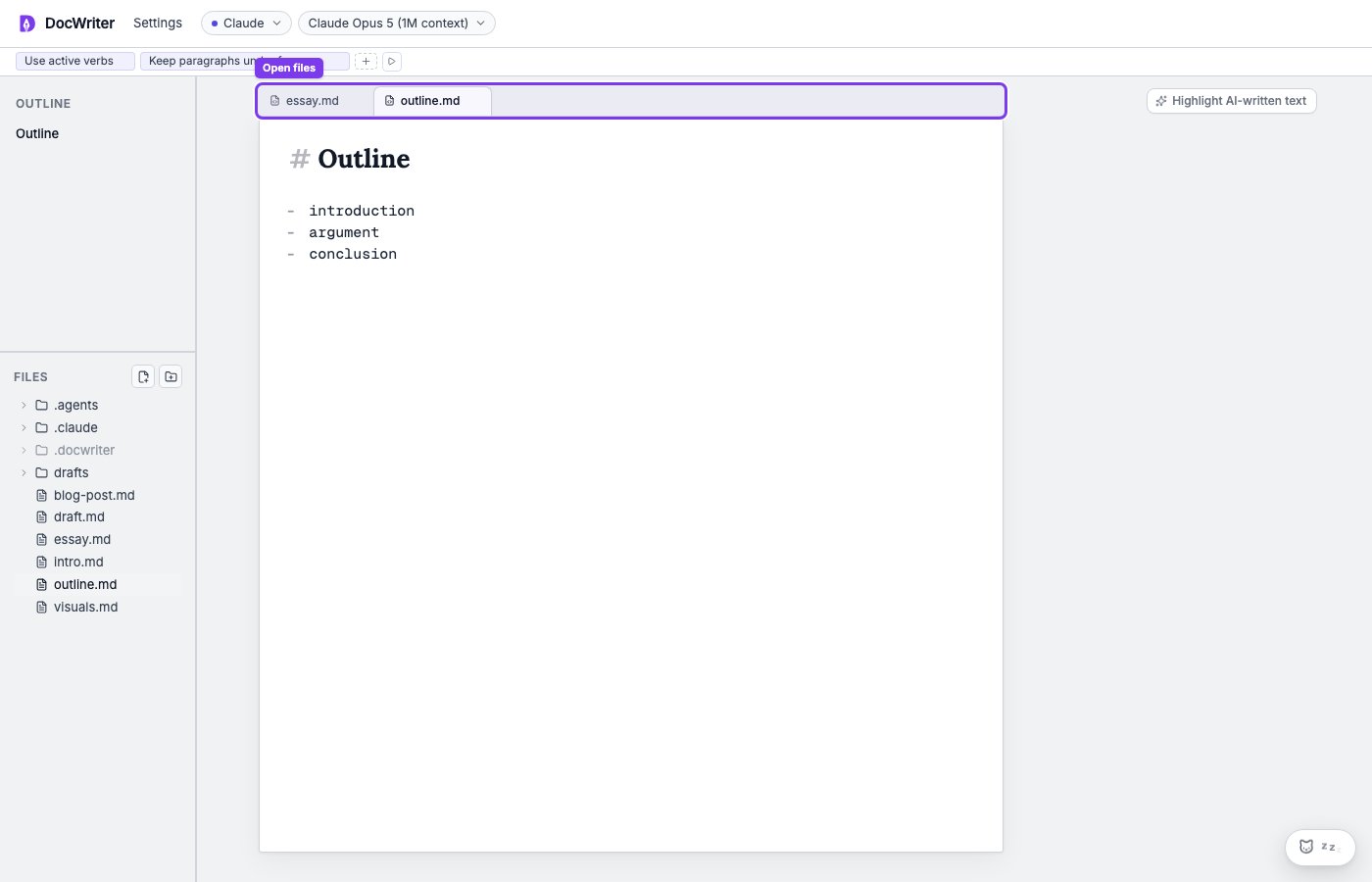
Internal files
You can see the.docwriter folder because it holds your saved DocWriter state and hook settings. Do not edit docwriter.db while DocWriter is running.
DocWriter hides large implementation folders such as .git, node_modules, .svelte-kit, and build.